> ## Documentation Index
> Fetch the complete documentation index at: https://docs.trydailybread.com/llms.txt
> Use this file to discover all available pages before exploring further.
# Viewing & Filtering Orders
> Understand which orders appear in your list and how to use filters effectively
## The Orders List
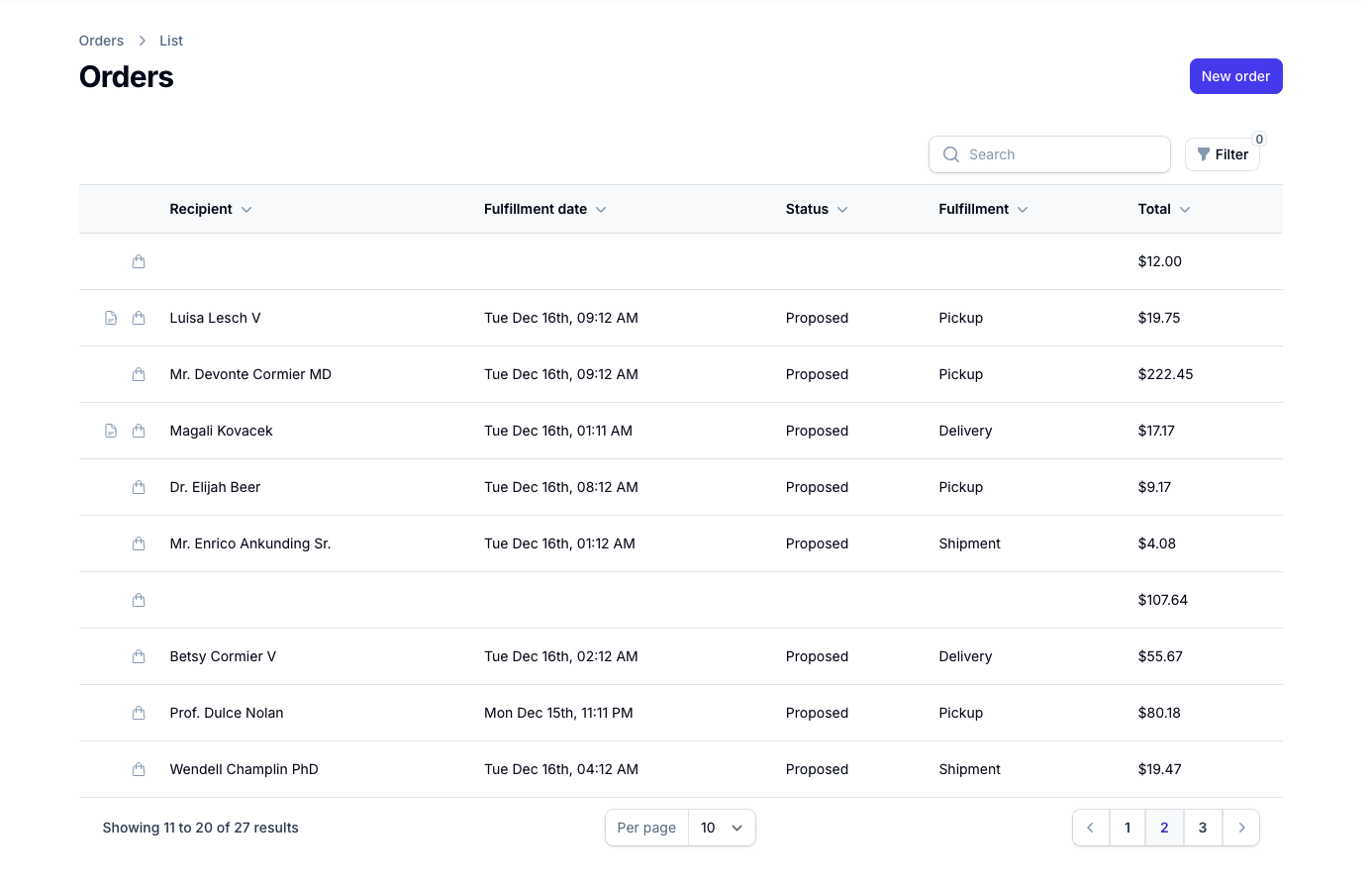
The Orders page displays all of your company's orders in a table format. By default, you'll see important information like Customer Name,
Fulfillment Date, Status, Fulfillment Type, and the Total about each order:
 ## Quick View Details
There are two quick action icons available for each order in the list, allowing you to view important details without opening the full order.
### View Order Items
To quickly see all line items in an order, click the shopping bag icon next to the order. This opens a popup displaying all products and
quantities in that order. If the order is [open](orders/creating-orders#open) you can modify the progress of individual items from this
popup as well.
### View Order Notes
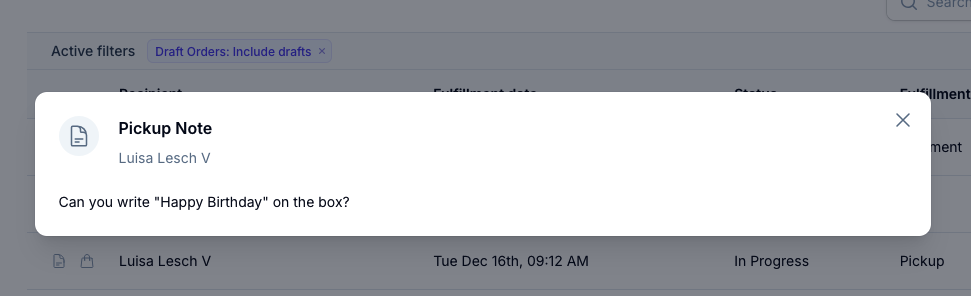
To view any special instructions or notes for an order, click the document icon next to the order. This opens a popup showing the fulfillment:
## Quick View Details
There are two quick action icons available for each order in the list, allowing you to view important details without opening the full order.
### View Order Items
To quickly see all line items in an order, click the shopping bag icon next to the order. This opens a popup displaying all products and
quantities in that order. If the order is [open](orders/creating-orders#open) you can modify the progress of individual items from this
popup as well.
### View Order Notes
To view any special instructions or notes for an order, click the document icon next to the order. This opens a popup showing the fulfillment:
 ## Permissions
All users can see the Orders page and the list of orders. However, only users with the appropriate roles can view
[draft](orders/creating-orders#draft) orders. **Owners**, **Administrators**, and **Editors** can see and filter draft orders, while **Viewers**
cannot.
## Permissions
All users can see the Orders page and the list of orders. However, only users with the appropriate roles can view
[draft](orders/creating-orders#draft) orders. **Owners**, **Administrators**, and **Editors** can see and filter draft orders, while **Viewers**
cannot.